
how to use google maps offline for travel comes down to one habit: download what you need before you lose service, then double-check it works while you still have Wi‑Fi.
Most people only think about offline maps after landing, when the airport Wi‑Fi is spotty, roaming is expensive, and you just want to find the train, your hotel, or dinner. Google Maps can handle a lot offline, but not everything, so a little prep keeps you from getting stuck at the worst moment.

In this guide, you’ll get a practical setup checklist, clear “what works vs. what won’t” expectations, and a few travel-proven habits for staying oriented even when your phone shows zero bars.
What Google Maps can and can’t do offline
Offline mode is useful, but it has boundaries. Knowing them upfront saves frustration.
- Works offline (usually): viewing the downloaded map area, searching for many places inside that area, turn-by-turn navigation for driving, basic place details you already loaded, saved pins and lists.
- Often limited offline: live traffic, alternate routes based on traffic, transit directions (subway/bus), cycling routes in some regions, business hours that changed recently, photos/reviews you didn’t load.
- Won’t work offline: anything that requires fresh internet data, like real-time transit times or new areas you didn’t download.
According to Google Maps Help, offline maps let you use navigation and search in the downloaded area, and you can manage or update those downloads from the Offline maps section in the app.
Before you leave: the 10-minute offline map setup
This is the part people skip, then regret. Do it while you’re on reliable Wi‑Fi, with your phone charging.
1) Update the app and sign in
Make sure Google Maps is updated, and you’re signed into the Google account you’ll use on the trip. Offline downloads tie to your account and device.
2) Download the exact areas you’ll move through
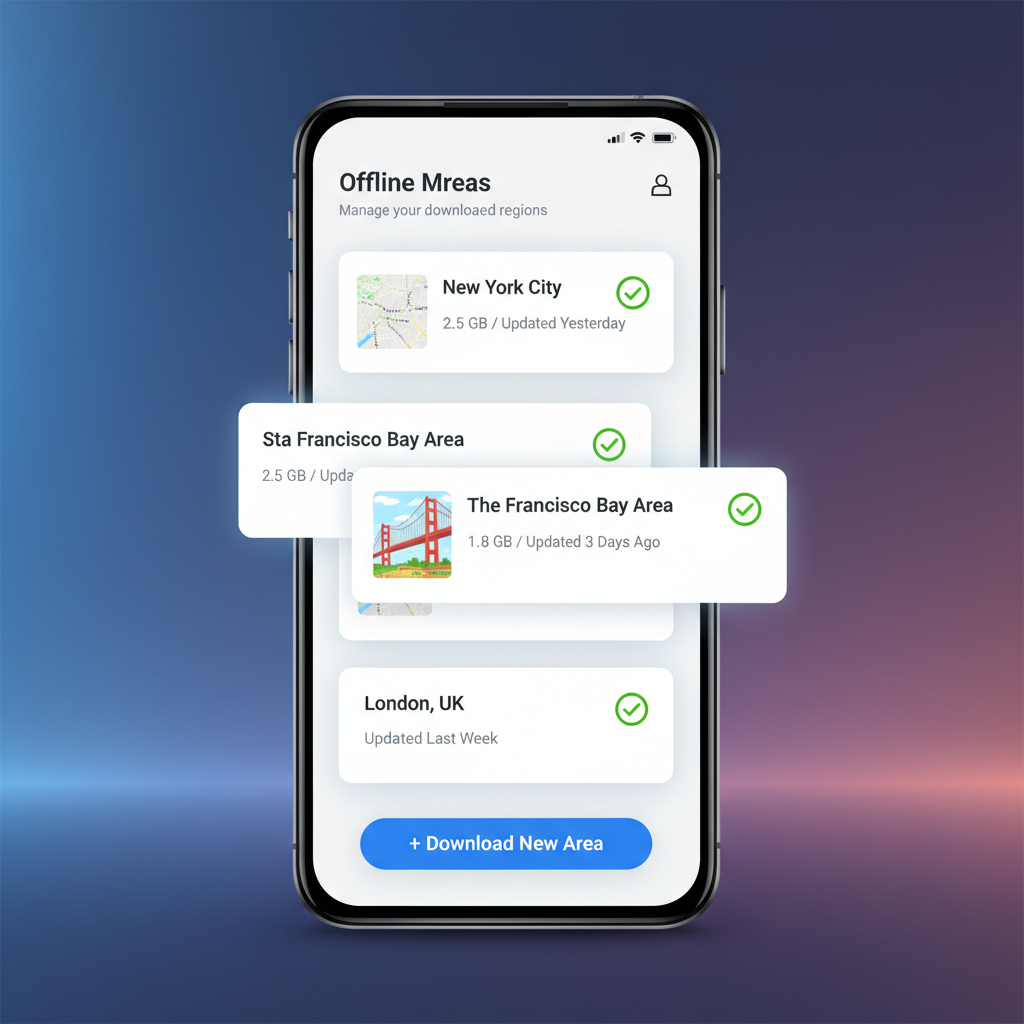
In Google Maps, go to Profile icon → Offline maps, then pick Select your own map. Zoom and frame the rectangle around where you’ll actually be, not just the city center.
- Add the airport + your hotel neighborhood.
- Add any day-trip towns or scenic areas with weak service.
- If it’s a road trip, download the whole corridor, not separate tiny boxes.
3) Choose download settings
- Turn on Wi‑Fi only downloads if you want to avoid surprise data use.
- Consider auto-update if you’ll have Wi‑Fi occasionally, but don’t rely on it if you’ll be fully off-grid.
Quick reality check: downloaded areas take storage. If your phone is tight on space, clear old offline areas before you add new ones.
A simple “offline-ready” checklist (use this the day before)
If you do nothing else, run through this list once. It catches the common failure points.
- Offline areas: downloaded and visible in Offline maps.
- Test with airplane mode: switch on airplane mode and open Maps, then search for your hotel and start navigation.
- Saved places: hotel, airport, train stations, key attractions saved to a list.
- Battery plan: power bank packed, low power mode shortcut ready.
- Backup info: address and phone number for lodging saved in Notes (or a screenshot) in case the app misbehaves.

The airplane-mode test feels a bit silly until it saves you. If your search results look empty, it often means you downloaded too small an area or you’re trying to search outside the box.
How to navigate offline (and what to do when rerouting fails)
Once you’re offline, the goal is to keep Maps doing the basics: show where you are and guide you on a reasonable route.
Driving navigation offline
- Open Maps, make sure you’re inside the downloaded area, then start navigation like normal.
- If it offers fewer route options, that’s typical without live traffic.
- If rerouting seems “stuck,” zoom out and confirm the new route still stays within the offline area.
Walking offline
Walking directions can be hit-or-miss offline depending on location. What still works well is the blue dot, the map, and your own route planning.
- Use the blue dot as your compass: you can follow streets visually even without full turn-by-turn steps.
- Drop a pin on your destination while you still have Wi‑Fi, then you can aim for it later.
Transit offline (the honest answer)
Public transit usually needs live schedules. If transit is your main plan, keep a second option: a saved screenshot of the route, the agency’s offline PDFs (many systems provide them), or an offline-capable city map from another source.
Smart saving: pins, lists, and screenshots that actually help
Offline maps help you move, but saved info helps you decide. This is where travelers save time.
Use lists for “must-find” places
- Create one list for Lodging & Transport (hotel, airport, stations).
- Create one list for Food backups (2–3 easy spots near where you’re staying).
- Create one list for Priority sights (the stuff you’d be annoyed to miss).
Screenshot what Google Maps may not show offline
If you expect to be offline a lot, screenshots fill gaps: hotel confirmation page, key reservations, and a zoomed-in map of the last-mile walk from a station.
Tip: name your screenshots or favorite them so you can find them fast under stress.
Troubleshooting: common offline map problems (and quick fixes)
When offline maps “don’t work,” it’s often one of these issues.
- Problem: You can’t search for anything.
Fix: Confirm the place is inside the downloaded area, then search simpler terms (hotel name vs. full address). Saved pins help here. - Problem: The map looks blank or low-detail.
Fix: You may be outside your offline box, or the download is incomplete. Reconnect to Wi‑Fi and re-download. - Problem: Navigation refuses to start.
Fix: Turn Location off/on, check battery saver settings (some restrict GPS), restart the app. - Problem: Offline area expired.
Fix: Update it before you go. If you’re already traveling, update on hotel Wi‑Fi.
One more thing people miss: if your phone is in extreme low power mode, GPS accuracy can drop, which makes offline navigation feel “wrong.” If you’re in a dense city, stepping outside for 30 seconds can improve the GPS lock.
Practical travel strategy: choosing the right offline setup
Not every trip needs the same prep. Here’s a quick way to match effort to risk.
| Travel situation | What to download | What to save | Extra backup |
|---|---|---|---|
| Big city, good coverage | City center + hotel area | Hotel, stations, 5–10 pins | Power bank |
| International trip, roaming off | Airport + full city + day trips | Lists for food/transport | Key screenshots, offline transit map if available |
| National parks / rural driving | Large corridor + park region | Trailheads, gas stops | Paper map or ranger station info, tell someone your route |
| Multi-country itinerary | One area per stop, refreshed as you go | Lodging addresses per stop | Local SIM/eSIM plan if possible |
Key takeaway: your offline map should cover where you might get lost, not just where you plan to be.
Key points to remember (so you don’t overthink it)
- Download early, test in airplane mode, then relax.
- Offline is great for driving and basic orientation, less reliable for transit schedules.
- Saved pins and a couple screenshots cover most “I have no signal” moments.
- Refresh downloads if your trip is long, especially when roads or businesses change.
If you were searching for how to use google maps offline for travel because you’ve been burned by dead zones before, this is the fix: treat offline maps like a preflight check, not a feature you try mid-crisis. Download the right areas, run the airplane-mode test, and keep a small backup plan for transit and last-mile walking.
Action step: open Google Maps now, download your first offline area, then do a 30-second airplane-mode test. If it fails, adjust the map box until it passes.